

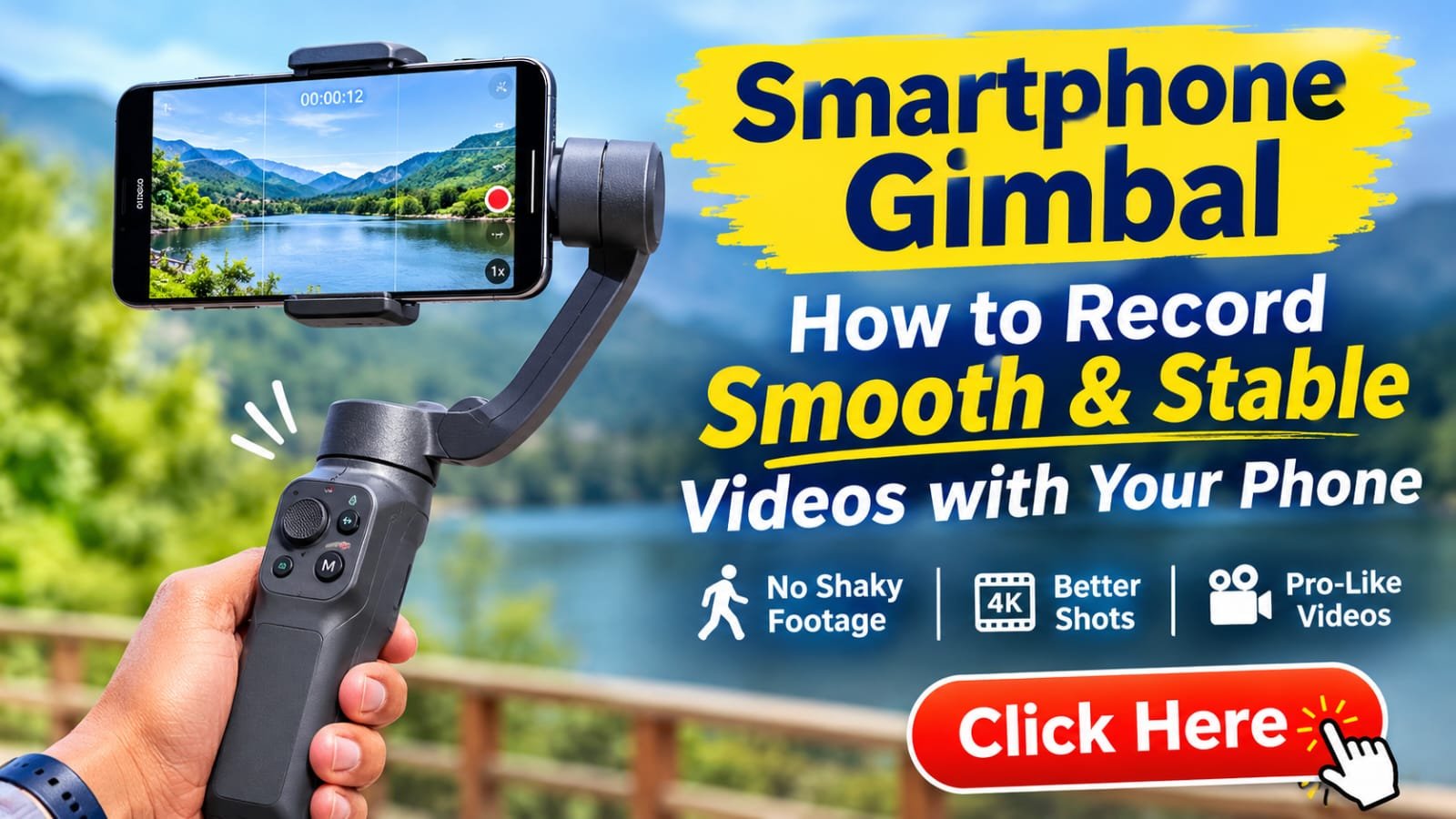
Smartphone Gimbal: How to Capture Stable Videos Using an Ordinary Smartphone
These days, you don’t need to buy an expensive camera to record high-quality videos. You can create beautiful videos for YouTube, Instagram Reels, travel vlogs, and family events using an ordinary smartphone. However, when recording videos while walking, shaky footage, unstable scenes when turning quickly, and videos that don’t look professional are common problems.
This is where a Smartphone Gimbal can help. It reduces unwanted movements caused by hand movements and helps you capture smoother and more stable videos.
In this article, let’s understand what a smartphone gimbal is, how it works, how to connect it to your phone, and which settings you should use to capture better videos.
What Is a Smartphone Gimbal?
A Smartphone Gimbal is a special handheld device designed for smartphones. It contains motors and sensors that help reduce unwanted movements when you walk, turn your hand, or change the camera angle.
For example, imagine you are recording a travel video while walking along a road. If you hold your phone in your hand, the footage may shake slightly with every step. However, when you use a properly adjusted gimbal, it can manage camera movements more smoothly.
How Does a Smartphone Gimbal Work?
Most smartphone gimbals have three main components:
– Motors: Adjust the phone’s angle according to the required movement.
– IMU Sensors: Help detect movement and rotation.
– Gimbal Control System: Controls the motors based on information received from the sensors.
With the help of these components, the gimbal attempts to keep the smartphone camera as stable as possible.
However, a gimbal cannot completely eliminate every vibration. For example, when walking down stairs, you may still experience up-and-down movements. Using the correct walking technique is also important.
Difference Between Smartphone Gimbal and Built-in Mobile Stabilization
Many modern smartphones come with EIS (Electronic Image Stabilization) or OIS (Optical Image Stabilization). So, you might wonder why you need a separate gimbal.
Who Can Benefit Most from a Smartphone Gimbal?
A gimbal is not essential for everyone. However, it can be a useful accessory for certain users.
1. YouTube Video Creators
If you record videos outdoors, a gimbal helps you keep the camera stable. It is useful for walking videos, talking videos, and location introduction videos.
2. Instagram Reels and Shorts Creators
You can use special modes available on some gimbals to capture smooth camera movements, rotating shots, and footage that follows moving subjects.
3. Travellers
A gimbal can help you record waterfalls, buildings, road scenes, and natural landscapes while travelling. However, protection against rain, water, and dust depends on the specific model.
4. Small Business Owners and Digital Marketers
Gimbals can be used to record product demonstrations, shop introductions, real estate videos, and promotional content for social media platforms.
Things to Consider Before Buying a Smartphone Gimbal
Don’t make your purchasing decision based only on price. Compatibility with your smartphone and your recording requirements are more important.
1. Phone Weight and Size
Every gimbal has a specific maximum payload capacity. If you use a phone case, additional lenses, or other accessories, consider their combined weight.
Before buying: Check the official product specifications to ensure that your smartphone’s weight and width are supported.
2. Battery Life
Battery capacity is important for long recording sessions. The battery life mentioned by manufacturers is usually based on specific testing conditions. Actual battery performance may be lower depending on usage.
3. Three-Axis Stabilization
Some models provide three-axis stabilization:
– Pan: Controls left and right rotational movements.
– Tilt: Controls upward and downward movements.
– Roll: Controls the phone’s horizontal tilt.
A three-axis stabilization system is useful for different types of recording. However, choose a model that suits your specific requirements.
4. App and Connectivity
Some gimbals connect to smartphones through Bluetooth. A separate app may be required to access their special features.
Before buying, check whether the app supports your phone’s Android or iOS version and which camera features are compatible.
5. Additional Features
Depending on your requirements, consider the following features:
– Active Tracking or Subject Tracking
– Portrait and Landscape Modes
– Zoom and Focus Controls
– Tripod or Extension Rod Support
– Charging Support
– Foldable and Portable Design
Not all models include these features. Therefore, read the official product specifications before purchasing.
How to Record Stable Videos Using a Smartphone Gimbal
Now, let’s look at the correct way to use a gimbal. Even if you are using one for the first time, you can follow these steps to get started.
Step 1: Fully Charge the Gimbal
First, check the gimbal’s battery level. If necessary, charge it using the cable or charger recommended by the manufacturer.
– Check the battery level.
– Disconnect the charging cable after charging is complete.
– Check your smartphone’s battery before going out to record videos.
For long recording sessions, make sure your smartphone also has sufficient battery power and storage space.
Step 2: Mount Your Smartphone Properly
For many models, it is recommended to mount your smartphone in the clamp while the gimbal is switched off. Always follow the instructions provided in your device’s user manual.
– Gently open the phone clamp.
– Place your smartphone in the recommended position.
– Check whether the clamp securely holds your phone.
– Make sure the phone does not touch other parts of the gimbal.
– The phone should not be loose. At the same time, avoid tightening the clamp excessively.
Step 3: Balance Your Smartphone
Proper smartphone balancing is important for the gimbal motors to work correctly. Some models adjust automatically, while others may require manual balancing.
– Position your smartphone in the correct centre position.
– If necessary, adjust the clamp or arm according to the user manual.
– Switch on the gimbal after making the adjustments.
– Check whether the phone is tilting unusually or whether the motor is making excessive noise.
If the balance is incorrect, additional pressure may be placed on the motors, which can drain the battery faster.
Step 4: Connect the Gimbal to Your Smartphone
Your gimbal may connect through Bluetooth or its official mobile app.
– Switch on the gimbal.
– Install the manufacturer’s official app if required.
– Open Settings > Bluetooth on your smartphone.
– Follow the instructions to pair the gimbal.
– Grant the necessary permissions if requested by the app.
On some models, Bluetooth pairing and app connectivity may be separate steps. If the connection fails, check the device’s user manual.
Avoid downloading APK files from unknown websites.
Step 5: Choose the Right Video Settings
Video quality is not determined by the gimbal alone. Your camera settings also play an important role.
For general use, consider the following settings as a starting point:
– Resolution: 1080p
– Frame Rate: 30 FPS
– Orientation: Portrait or Landscape, depending on your requirements
– Focus: Lock focus on the subject if possible
– Exposure: Adjust according to lighting conditions
If your smartphone supports 4K video recording and you need more detail, you can use 4K. However, this may increase storage consumption and smartphone temperature.
For recording while walking, 30 FPS is a good starting option. You can try 60 FPS for fast movements or special slow-motion footage, depending on lighting conditions and your phone’s capabilities.
Step 6: Learn the Different Gimbal Modes
Many gimbals offer different shooting modes. Their names and functions may vary depending on the model.
Pan Follow: The camera follows left or right movements. In some modes, tilt and roll remain controlled. This mode is useful for showing wide views of locations.
Lock Mode: Attempts to keep the selected camera direction stable. It can help when walking forward while keeping the camera pointed towards a building or subject.
Follow Mode: The camera follows your movements when you pan or tilt the gimbal. It can be useful for recording people or moving objects.
POV Mode: Some models offer a mode that follows movements across multiple axes, including roll. This can be useful for dynamic footage.
Start by selecting one mode and testing it while moving slowly. You don’t need to change modes for every scene.
Step 7: Use the Correct Walking Technique
Even when using a gimbal, your walking technique affects video quality.
– Hold the handle with both hands if possible.
– Keep your elbows slightly bent and close to your body.
– Take small steps.
– Bend your knees slightly and walk smoothly.
– Avoid suddenly turning your hands to the left or right.
Hold the gimbal handle comfortably and move it in a controlled manner without gripping it excessively tightly.
When walking on stairs, uneven roads, or crowded areas, always prioritise your safety.
Step 8: Control Camera Movements Slowly
Slow camera movements help make videos look more professional.
For example, when recording the complete view of a building, avoid turning the gimbal suddenly. Instead, pan slowly.
When recording someone walking, adjust your camera movement to match their speed.
Before starting a video, stand still for a moment and then begin recording. Similarly, slow down and stop gently when finishing the recording. This makes it easier to remove unnecessary footage during editing.
Step 9: Use Subject Tracking
Some gimbals offer an automatic tracking feature that follows a person or object.
– Open the supported app or tracking mode.
– Select the subject you want to track.
– Start tracking.
– Move slowly and check whether the smartphone follows the subject correctly.
Tracking does not work equally well in every lighting and movement condition. Low light, obstacles, and fast movements can affect tracking performance.
Common Mistakes to Avoid When Using a Smartphone Gimbal
1. Not Balancing the Smartphone Properly
If the phone is tilted or excessive pressure is placed on the motors, the gimbal’s performance may decrease. Follow the device instructions to correct the balance.
2. Using Digital Zoom Excessively
Digital zoom may make the subject appear larger, but it can reduce image details. Whenever possible, move closer to the subject safely or select a suitable high-quality camera lens on your smartphone.
3. Moving Too Much in Every Shot
Just because a gimbal offers multiple movement modes doesn’t mean you need to use all of them in one video. Simple and slow movements usually produce better results in many situations.
4. Ignoring the Limitations of a Gimbal
A gimbal cannot eliminate every vibration. Running quickly, jumping, or moving on rough surfaces can still make videos shaky. Controlling your own movements is equally important.
How to Maintain Your Smartphone Gimbal
Proper maintenance is necessary to keep your gimbal working efficiently for a long time.
– Clean the device with a soft, dry cloth after use.
– Keep the device away from moisture and excessive heat.
– Check the locking and unlocking procedure in the user manual before folding the device.
– Follow the manufacturer’s instructions for battery charging and storage.
– Check for firmware updates through the official app or website.
– Use a suitable carrying case to prevent unnecessary pressure on the motors while transporting the device.
If you notice unusual vibrations, motor noise, or warning messages after switching on the gimbal, do not force it to operate. First, check the smartphone’s weight, balance, and the device instructions.
Frequently Asked Questions About Smartphone Gimbals
1. Can I Use a Smartphone Gimbal with an Ordinary Android Phone?
Yes. You can use a smartphone gimbal with an ordinary Android phone as long as your phone’s weight and size are within the gimbal’s supported limits. However, some special app features may only be available on selected smartphones.
2. Can I Record Stable Videos Without a Gimbal?
Yes. You can use your smartphone’s OIS/EIS features, hold the phone with both hands, walk slowly, and record in good lighting conditions. However, a gimbal can provide additional support for more complex camera movements.
3. Do I Need an Internet Connection to Use a Smartphone Gimbal?
Generally, an internet connection is not required for the basic stabilization functions of a gimbal. However, you may need internet access to download the app, install firmware updates, or use certain online features.
4. Does a Gimbal Increase Video Quality to 4K?
No. A gimbal does not increase video resolution. It helps stabilize camera movements. To record 4K videos, your smartphone camera must support 4K recording.
5. Which Type of Gimbal Should Beginners Buy?
Beginners can choose a model that is compatible with their smartphone, easy to operate, offers good battery life, and supports the essential shooting modes they need.
Before purchasing, check the official specifications, warranty, and service availability.
Final Words
A Smartphone Gimbal is a useful device that helps you capture smoother, more stable, and attractive videos using your ordinary smartphone.
It can be particularly helpful for people who create YouTube videos, Instagram Reels, travel footage, or product demonstration videos.
However, instead of spending money on an expensive gimbal, it is more important to choose the right model, balance your smartphone correctly, use suitable camera settings, and learn the proper techniques for smooth movements.
If you are already using a gimbal, share your experience with us in the comments. If you are planning to buy one, consider choosing a suitable option based on your smartphone model and budget.